
In this article we are going to cover How to Integrate GitHub Copilot With Visual Studio Code.
Table of Contents
What is GitHub Copilot?
GitHub Copilot is an AI-powered code completion tool developed by GitHub in collaboration with OpenAI. It acts as an intelligent coding assistant, offering real-time code suggestions as you type. Trained on a massive corpus of public code, Copilot helps developers write code faster, discover new patterns, and reduce repetitive tasks by generating boilerplate code, function suggestions, and even full code blocks—all based on your current context.
Step #1:Install Visual Studio Code
Before installing Copilot, you need to have VS Code installed.
Install it based on your operating system (Windows, macOS, or Linux).
Step #2:Install the GitHub Copilot Extension
To install the Copilot extension:
- Open Visual Studio Code.
- Go to the Extensions view.
- In the search bar, type GitHub Copilot.
- Click Install on the extension published by GitHub.
Step #3:Sign in to GitHub
Once installed, you’ll be prompted to sign in:
- Click Sign In when prompted.
- A browser window will open, asking you to log in to your GitHub account.
- After signing in, click Authorize GitHub Copilot to link it to your VS Code.
You’ll be redirected back, and Copilot will activate automatically.
Step #4:Configure Copilot Settings
You can tailor Copilot’s behavior to match your preferences:
- Go to Settings via the gear icon or File → Preferences → Settings.
- In the search bar, type GitHub Copilot.
- Adjust options such as:
- Enable/disable inline suggestions
- Configure behavior for specific languages
- Enable multi-suggestion mode
These settings allow you to control how and when Copilot interacts with your code.
Step #5:Start Using GitHub Copilot
You’re all set! Here’s how to begin:
- Open or create a file (e.g.,
.py,.js,.java, etc.). - Press ctrl + I to start copilot.
- Now you can ask it to generate code for you e.g. generate a html code for login page.
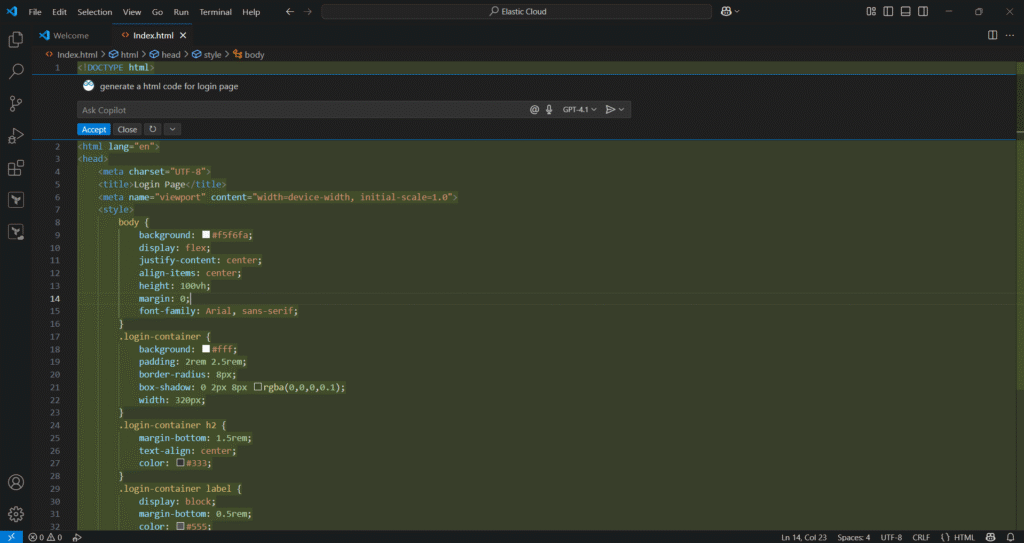
Output:

Step #6:Review Copilot’s Suggestions Carefully
While Copilot is powerful, it’s essential to:
- Review generated code for accuracy
- Ensure it meets your use case and security standards
- Avoid copying sensitive or proprietary content
Think of Copilot as an intelligent assistant—not a replacement for your expertise.
Conclusion:
Integrating GitHub Copilot into Visual Studio Code is straightforward and highly beneficial for developers of all skill levels. Whether you’re working on a personal project or collaborating on enterprise applications, Copilot helps you code smarter and faster. By following this guide, you’ll be equipped to make the most of this AI assistant, improving productivity and focusing more on logic and creativity than on boilerplate code.
