
In this article we will learn how to monitor Java Application with OpenTelemetry, Prometheus, and Grafana | Instrumenting Java Application using OpenTelemetry, Prometheus, and Grafana.
Monitoring your Java application is crucial for gaining insights into performance, detecting issues, and ensuring smooth operation. By integrating OpenTelemetry, Prometheus for monitoring, and Grafana for visualization, you can set up a comprehensive observability stack. This guide will walk you through the entire process of setting up monitoring for a Java application.
Table of Contents
Prerequisites
Before you start, ensure you have the following installed on your system.
- AWS Account with Ubuntu 24.04 LTS EC2 Instance.
- Open JDK, Maven, Docker, Prometheus and Grafana installed..
Step #1:Set Up Ubuntu EC2 Instance
Update the package list.
sudo apt update
Install the default JDK for java.
sudo apt install -y default-jdk
check its version to verify its installation.
java -version
Install Maven.
sudo apt install -y maven
check its version to verify its installation.
mvn -version
Install Docker.
sudo apt install -y docker.io
start and enable the docker.
sudo systemctl start docker
sudo systemctl enable docker
Pull the latest Prometheus Docker image.
sudo docker pull prom/prometheus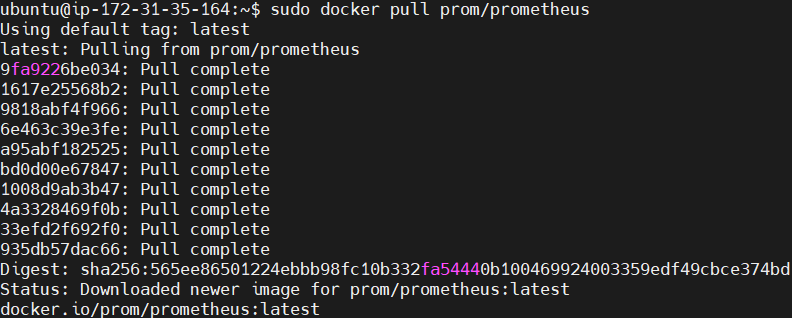
Pull the latest Grafana Docker image.
sudo docker pull grafana/grafana
Step #2:Create the Maven Roll Dice Application
Run the following command to create a new Maven project.
mvn archetype:generate -DgroupId=com.example -DartifactId=roll-dice -DarchetypeArtifactId=maven-archetype-quickstart -DinteractiveMode=false
Navigate to the Project Directory.
cd roll-dice
Edit the pom.xml to include the following dependencies for OpenTelemetry and Prometheus.
nano pom.xml
Replace its content with the following code.
<project xmlns="http://maven.apache.org/POM/4.0.0" xmlns:xsi="http://www.w3.org/2001/XMLSchema-instance"
  xsi:schemaLocation="http://maven.apache.org/POM/4.0.0 http://maven.apache.org/maven-v4_0_0.xsd">
  <modelVersion>4.0.0</modelVersion>
  <groupId>com.example</groupId>
  <artifactId>helloworld</artifactId>
  <packaging>jar</packaging>
  <version>1.0-SNAPSHOT</version>
  <name>helloworld</name>
  <url>http://maven.apache.org</url>
  <parent>
    <groupId>org.springframework.boot</groupId>
    <artifactId>spring-boot-starter-parent</artifactId>
    <version>3.4.0</version>
    <relativePath />
  </parent>
  <dependencies>
    <dependency>
      <groupId>junit</groupId>
      <artifactId>junit</artifactId>
      <version>3.8.1</version>
      <scope>test</scope>
    </dependency>
    <dependency>
      <groupId>org.springframework.boot</groupId>
      <artifactId>spring-boot-starter-web</artifactId>
    </dependency>
    <dependency>
      <groupId>org.springframework.boot</groupId>
      <artifactId>spring-boot-starter-test</artifactId>
      <scope>test</scope>
    </dependency>
    <!-- OpenTelemetry API -->
    <dependency>
        <groupId>io.opentelemetry</groupId>
        <artifactId>opentelemetry-api</artifactId>
        <version>1.44.1</version>
    </dependency>

    <!-- OpenTelemetry SDK (for exporting metrics/traces) -->
    <dependency>
        <groupId>io.opentelemetry</groupId>
        <artifactId>opentelemetry-sdk</artifactId>
        <version>1.44.1</version>
    </dependency>

    <!-- Optional: Prometheus Exporter -->
    <dependency>
        <groupId>io.opentelemetry</groupId>
        <artifactId>opentelemetry-exporter-prometheus</artifactId>
        <version>1.44.1-alpha</version>
    </dependency>

    <dependency>
        <groupId>io.opentelemetry</groupId>
        <artifactId>opentelemetry-exporter-logging</artifactId>
        <version>1.44.1</version>
    </dependency>
    <dependency>
        <groupId>io.prometheus</groupId>
        <artifactId>simpleclient</artifactId>
        <version>0.16.0</version>
    </dependency>
    <dependency>
        <groupId>io.prometheus</groupId>
        <artifactId>simpleclient_httpserver</artifactId>
        <version>0.16.0</version>
    </dependency>
    <dependency>
        <groupId>io.prometheus</groupId>
        <artifactId>simpleclient_hotspot</artifactId>
        <version>0.16.0</version>
    </dependency>
    <dependency>
        <groupId>org.nanohttpd</groupId>
        <artifactId>nanohttpd</artifactId>
        <version>2.3.1</version>
    </dependency>

    <!-- SLF4J for Logging -->
    <dependency>
        <groupId>org.slf4j</groupId>
        <artifactId>slf4j-api</artifactId>
        <version>2.1.0-alpha1</version>
    </dependency>
  </dependencies>
  <build>
    <plugins>
      <plugin>
        <groupId>org.springframework.boot</groupId>
        <artifactId>spring-boot-maven-plugin</artifactId>
      </plugin>
    </plugins>
  </build>
</project>
Step #3:Add OpenTelemetry Instrumentation to the Java Application
Navigate to the src/main/java/com/example.
cd src/main/java/com/example
Open the application file.
nano App.java
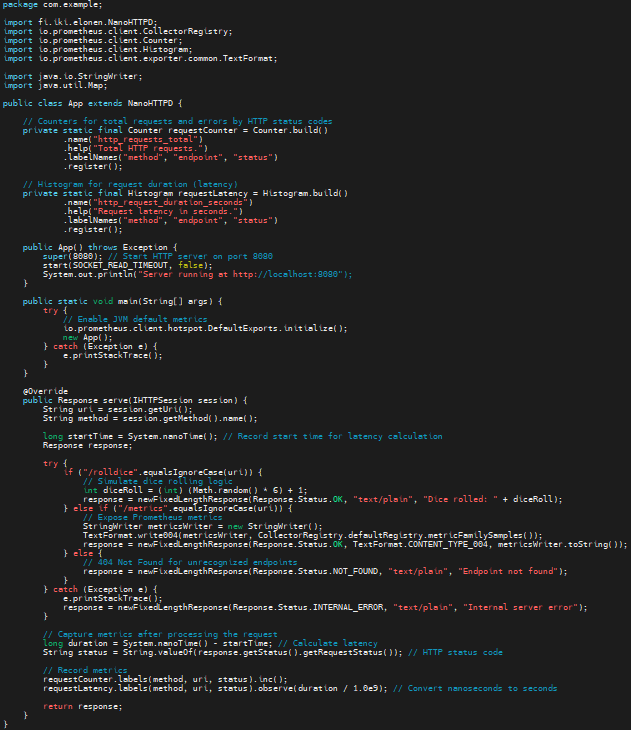
Replace its content with the following code.
package com.example;

import fi.iki.elonen.NanoHTTPD;
import io.prometheus.client.CollectorRegistry;
import io.prometheus.client.Counter;
import io.prometheus.client.Histogram;
import io.prometheus.client.exporter.common.TextFormat;

import java.io.StringWriter;
import java.util.Map;

public class App extends NanoHTTPD {

    // Counters for total requests and errors by HTTP status codes
    private static final Counter requestCounter = Counter.build()
            .name("http_requests_total")
            .help("Total HTTP requests.")
            .labelNames("method", "endpoint", "status")
            .register();

    // Histogram for request duration (latency)
    private static final Histogram requestLatency = Histogram.build()
            .name("http_request_duration_seconds")
            .help("Request latency in seconds.")
            .labelNames("method", "endpoint", "status")
            .register();

    public App() throws Exception {
        super(8080); // Start HTTP server on port 8080
        start(SOCKET_READ_TIMEOUT, false);
        System.out.println("Server running at http://localhost:8080");
    }

    public static void main(String[] args) {
        try {
            // Enable JVM default metrics
            io.prometheus.client.hotspot.DefaultExports.initialize();
            new App();
        } catch (Exception e) {
            e.printStackTrace();
        }
    }

    @Override
    public Response serve(IHTTPSession session) {
        String uri = session.getUri();
        String method = session.getMethod().name();

        long startTime = System.nanoTime(); // Record start time for latency calculation
        Response response;

        try {
            if ("/rolldice".equalsIgnoreCase(uri)) {
                // Simulate dice rolling logic
                int diceRoll = (int) (Math.random() * 6) + 1;
                response = newFixedLengthResponse(Response.Status.OK, "text/plain", "Dice rolled: " + diceRoll);
            } else if ("/metrics".equalsIgnoreCase(uri)) {
                // Expose Prometheus metrics
                StringWriter metricsWriter = new StringWriter();
                TextFormat.write004(metricsWriter, CollectorRegistry.defaultRegistry.metricFamilySamples());
                response = newFixedLengthResponse(Response.Status.OK, TextFormat.CONTENT_TYPE_004, metricsWriter.toString());
            } else {
                // 404 Not Found for unrecognized endpoints
                response = newFixedLengthResponse(Response.Status.NOT_FOUND, "text/plain", "Endpoint not found");
            }
        } catch (Exception e) {
            e.printStackTrace();
            response = newFixedLengthResponse(Response.Status.INTERNAL_ERROR, "text/plain", "Internal server error");
        }

        // Capture metrics after processing the request
        long duration = System.nanoTime() - startTime; // Calculate latency
        String status = String.valueOf(response.getStatus().getRequestStatus()); // HTTP status code

        // Record metrics
        requestCounter.labels(method, uri, status).inc();
        requestLatency.labels(method, uri, status).observe(duration / 1.0e9); // Convert nanoseconds to seconds

        return response;
    }
}
Step #4:Configure Prometheus for Java Application
Navigate back to root directory.
cd ../../../../..
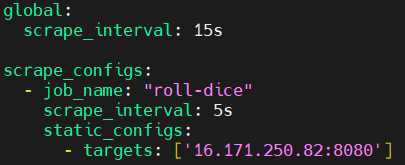
Create a Prometheus Configuration File.
nano prometheus.yml
Add the following content into it.
global:
  scrape_interval: 15s

scrape_configs:
  - job_name: "roll-dice"
    scrape_interval: 5s
    static_configs:
      - targets: ['<EC2-instance-IP>:8080']
Replace <EC2-instance-IP> with the public IP address of your EC2 instance.
Step #5:Build and Run the Java Application
Build the Application using following command.
mvn clean install
Run the Application using following command.
mvn spring-boot:run
Open your browser to access the Application and Prometheus metrics.
Roll Dice Endpoint: Visit http:// to roll the dice and get the result.<EC2-instance-IP>:8080/rolldice

Replace <EC2-instance-IP> with the public IP address of your EC2 instance.
Metrics Endpoint: Visit http:// to see the Prometheus metrics.<EC2-instance-IP>:8080/metrics

Replace <EC2-instance-IP> with the public IP address of your EC2 instance.
Step #6:Start the Prometheus
Open the duplicate tab and navigate to the root directory.
cd roll-dice
Run the Prometheus Container using following command.
sudo docker run -p 9090:9090 -v /home/ubuntu/roll-dice/prometheus.yml:/etc/prometheus/prometheus.yml prom/prometheus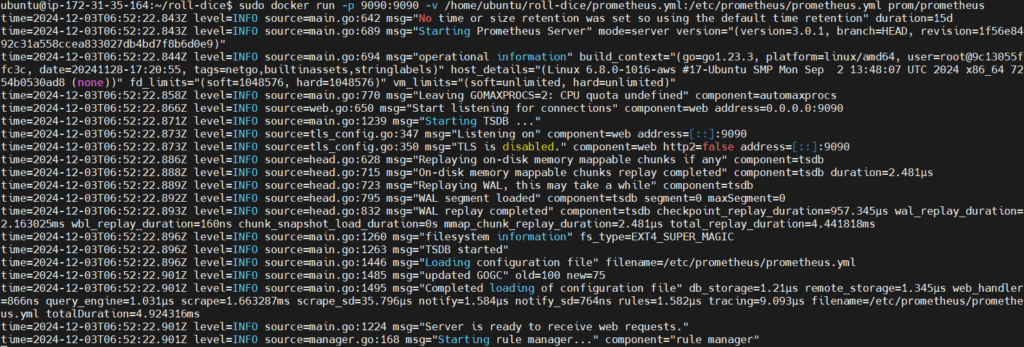
Visit http:// to see Prometheus UI.<EC2-instance-IP>:9090
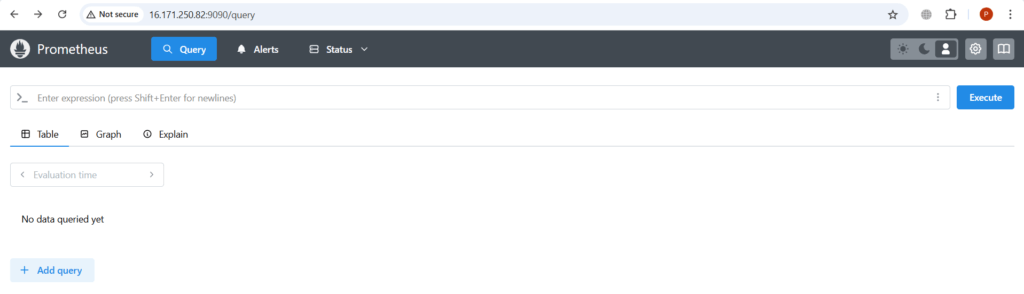
To check if Prometheus is correctly scraping metrics from your Java application, navigate to the “Targets” page in the Prometheus UI. Click on “Status” in the menu bar and then “Targets. “Ensure that your job roll-dice is listed and marked as “UP.”

Step #7:Set Up Grafana for Visualization
Start the Grafana container.
sudo docker run -d -p 3000:3000 --name=grafana grafana/grafana
Log in to Grafana at http://<EC2-Public-IP>:3000

Default login credentials are:
- Username:
admin - Password:
admin(you will be prompted to change this).
You will be prompted to change the password after your first login. You can change it or skip it.
After logging in to Grafana, you’ll need to add Prometheus as a data source.
- Click on “Connections”
- Click on the “Data source” button.

Search for prometheus in search bar and select it as a data source. Then click on Add new data source.
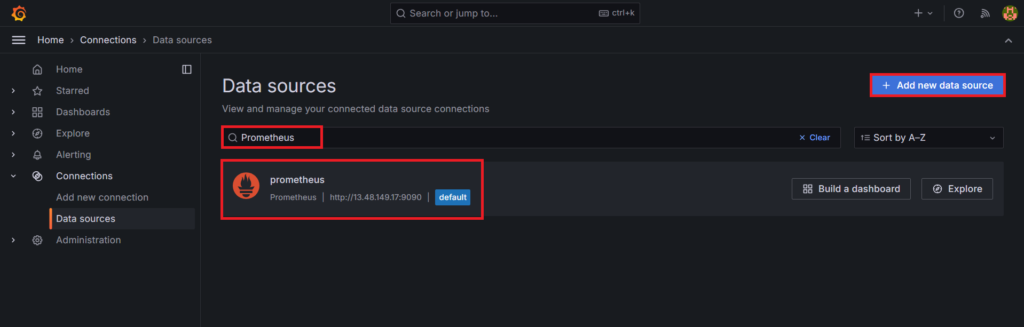
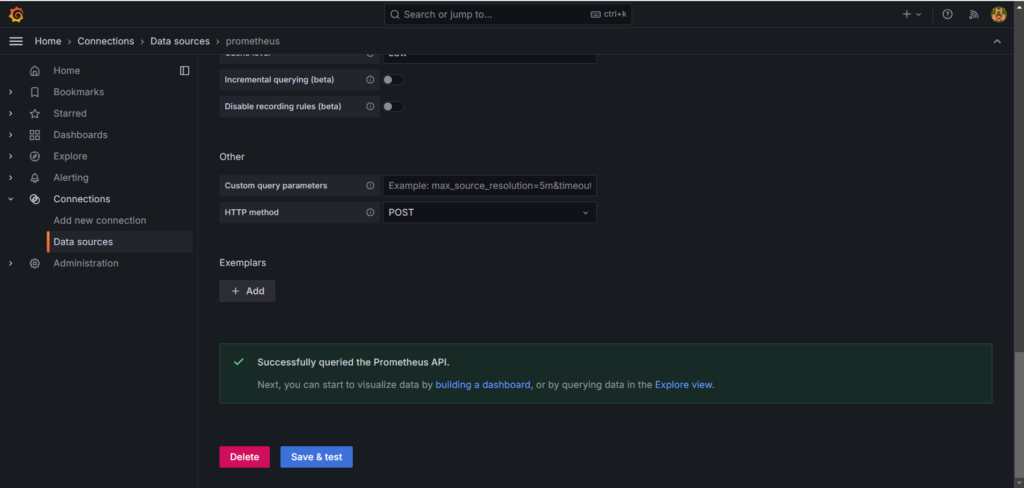
Set the URL to: http://<EC2-Instance-IP>:9090. Replace <EC2-Instance-IP> with the IP address of your EC2 instance. Leave other settings at their default values.

Click the “Save & Test” button to ensure that Grafana can connect to Prometheus.
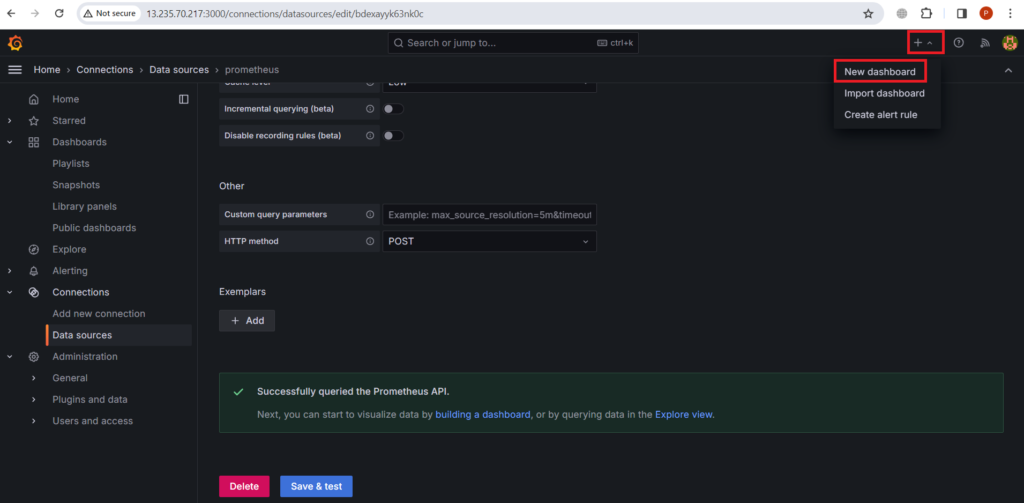
Click on the “Plus” icon in the sidebar and select “Dashboard.”
Click on “Add visualization”

In the “Query” section, select the Prometheus data source. Enter a Prometheus query to retrieve metrics, such as,
http_request_totalyou can also select endpoint = /rolldice to see http requests made to rolldice endpoint.

Choose a visualization type (e.g., “Time series,” “Graph”, “Gauge”) that best represents your data.
Here we have used “Gauge.”

You see a count of 2 for this metric, it means there have been a total of 2 HTTP requests made to java application.
Conclusion:
In conclusion, today we’ve successfully set up monitoring for Java application using OpenTelemetry for metrics, Prometheus for monitoring, and Grafana for visualizing the data. This setup will allow you to gain valuable insights into the performance and health of your application. By following this guide, you’ve successfully integrated Grafana with Prometheus and the Java application for visualizing HTTP metrics. With Grafana’s dashboards, you can gain deeper insights into your application’s performance.
Related Articles:
Instrumenting Java Application with Maven Using OpenTelemetry Java Agent
Reference:
