
In this article, we’ll explore how to instrument Java application built with Gradle using the OpenTelemetry Java Agent. OpenTelemetry provides powerful tools for observability, allowing developers to gain insights into application performance by collecting telemetry data such as traces, metrics, and logs. We’ll set up a simple Spring Boot application, add an endpoint for rolling a dice, and configure OpenTelemetry with java agent for logging.
Table of Contents
Prerequisites
Before we begin, ensure you have the following installed on your Ubuntu system:
- AWS Account with Ubuntu 24.04 LTS EC2 Instance.
- OpenJDK 17: The Java Development Kit (JDK) for running Java applications.
- Gradle: A build automation tool that manages dependencies and build tasks.
Step #1:Set Up Ubuntu EC2 Instance
If you don’t have JDK or Gradle installed on your system, you can install them using the following commands.
First, update the package list.
sudo apt update

Then install OpenJDK 17, which is required to run your Spring Boot application.
sudo apt install openjdk-17-jdk -y

Verify the Java installation.
java -version

You should see the version details of your Java installation.
Now let’s install Gradle. Gradle can be installed using the following command,
sudo apt install gradle -y

Step #2:Initialize a New Java Application with Gradle
To create a new Spring Boot project, you can use the command line. Run the following command to generate a new project.
First create a directory for the project and navigate to that directory.
mkdir java-simple
cd java-simple

Next, initialize the project using Gradle.
gradle init --type java-application
This command sets up a basic Gradle project structure.
Open the build.gradle file.
nano build.gradle
Replace its content with the following.
plugins {
        id 'java'
        id 'org.springframework.boot' version '3.3.5'
}

apply plugin: 'io.spring.dependency-management'

group = 'com.example'
version = '0.0.1-SNAPSHOT'
sourceCompatibility = '17'

repositories {
        mavenCentral()
}

dependencies {
    implementation 'org.springframework.boot:spring-boot-starter-web'
}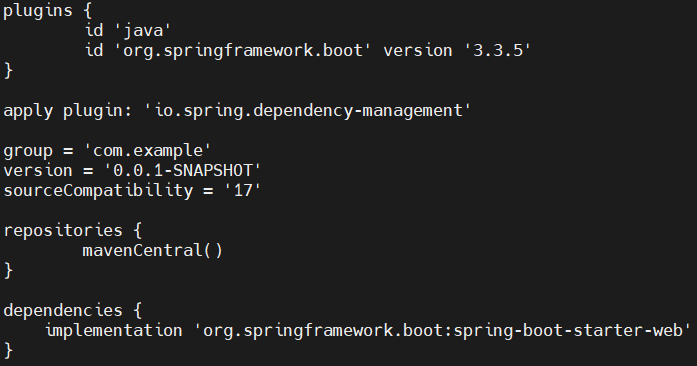
Explanation of the code:
This is a Gradle build script for a simple Java Spring Boot project, using the Spring Boot plugin and dependency management for easier setup and version control.
- Plugins Block:
id 'java': Adds support for Java compilation and packaging.id 'org.springframework.boot' version '3.3.5': Adds Spring Boot’s Gradle plugin (version 3.3.5) for Spring Boot application support, which includes tasks for running and packaging the app.
- apply plugin:
- This applies the Spring Dependency Management plugin, which manages transitive dependencies for Spring projects, making it easier to handle compatible versions of libraries.
- Project Metadata:
group: Defines the package namespace (e.g.,com.example) for identifying the project.version: Sets the current version of the project (0.0.1-SNAPSHOT), where “SNAPSHOT” denotes a work-in-progress.sourceCompatibility: Specifies Java 17 as the target version.
- Repositories:
- Defines
mavenCentralas the source for downloading dependencies, the main repository for Java libraries.
- Defines
- Dependencies Block:
implementation 'org.springframework.boot:spring-boot-starter-web': Adds the Spring Boot Web Starter dependency, which includes everything necessary to create a web application, including a Tomcat server and essential Spring components.
Step #3:Create the Java Application and Controller
Next navigate to the Main Java source directory.
cd src/main/java

Remove the default App.java file that was generated.
sudo rm App.java

Create the package structure and navigate into it.
mkdir -p com/example
cd com/example

Create the main application file DiceApplication.java
nano DiceApplication.java
Add the following code.
package com.example;

import org.springframework.boot.Banner;
import org.springframework.boot.SpringApplication;
import org.springframework.boot.autoconfigure.SpringBootApplication;

@SpringBootApplication
public class DiceApplication {
  public static void main(String[] args) {
    SpringApplication app = new SpringApplication(DiceApplication.class);
    app.setBannerMode(Banner.Mode.OFF);
    app.run(args);
  }
}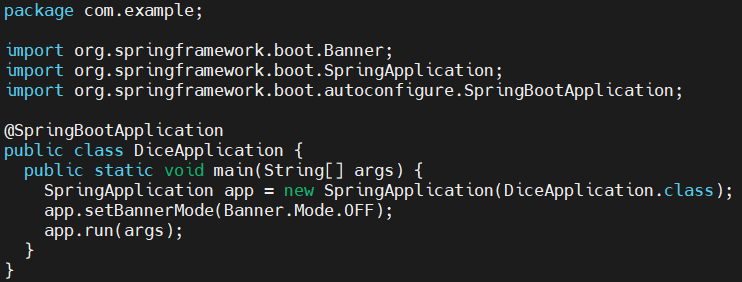
Explanation of the code:
This is the main application code for a simple Java Spring Boot project, which launches a web application without displaying the Spring Boot banner.
- Package Declaration:
package com.example;: Defines the package for theDiceApplicationclass. In Java, packages help organize classes logically and avoid naming conflicts.
- Import Statements:
- Imports Spring Boot classes for app startup (
SpringApplication) and configuration (SpringBootApplication), along withBannerfor optional customization.
- Imports Spring Boot classes for app startup (
- Class Annotation:
- @SpringBootApplication: This annotation marks the main class of the Spring Boot application, enabling features like:
- @Configuration: Allows Java-based configuration in place of XML.
- @EnableAutoConfiguration: Enables automatic configuration of Spring based on dependencies.
- @ComponentScan: Scans the package for Spring components (like controllers and services), making them available to the application.
- @SpringBootApplication: This annotation marks the main class of the Spring Boot application, enabling features like:
- Class and main Method:
- Declares DiceApplication as the main class.
- SpringApplication app = new SpringApplication(DiceApplication.class); – Initializes the application.
- app.setBannerMode(Banner.Mode.OFF); – Disables the banner for cleaner console output.
- app.run(args); – Starts the application, launching the embedded web server.
Create the RollController class to simulate a dice roll.
nano RollController.java
Add the following code.
package com.example;

import java.util.Optional;
import java.util.concurrent.ThreadLocalRandom;
import org.slf4j.Logger;
import org.slf4j.LoggerFactory;
import org.springframework.web.bind.annotation.GetMapping;
import org.springframework.web.bind.annotation.RequestParam;
import org.springframework.web.bind.annotation.RestController;

@RestController
public class RollController {
  private static final Logger logger = LoggerFactory.getLogger(RollController.class);

  @GetMapping("/rolldice")
  public String index(@RequestParam("player") Optional<String> player) {
    int result = this.getRandomNumber(1, 6);
    if (player.isPresent()) {
      logger.info("{} is rolling the dice: {}", player.get(), result);
    } else {
      logger.info("Anonymous player is rolling the dice: {}", result);
    }
    return Integer.toString(result);
  }

  public int getRandomNumber(int min, int max) {
    return ThreadLocalRandom.current().nextInt(min, max + 1);
  }
}
Explanation of the code:
This RollController class handles HTTP requests for rolling a dice. It provides an endpoint (/rolldice) that simulates rolling a dice and logs the result, optionally associating it with a player name.
- Package Declaration:
- package com.example; – Organizes the class under the
com.examplepackage.
- package com.example; – Organizes the class under the
- Imports:
java.util.Optional,java.util.concurrent.ThreadLocalRandom: For handling optional player input and generating random dice numbers.org.slf4j.Logger,org.slf4j.LoggerFactory: For logging the dice roll results.org.springframework.web.bind.annotation.GetMapping,org.springframework.web.bind.annotation.RequestParam,org.springframework.web.bind.annotation.RestController: For defining the RESTful controller and handling GET requests with optional query parameters.
- @RestController Annotation:
- Indicates that the class is a Spring REST controller, capable of handling HTTP requests and returning HTTP responses.
- Logger:
private static final Logger logger = LoggerFactory.getLogger(RollController.class);– Initializes a logger for the class to log dice roll information.
- index Method:
@GetMapping("/rolldice"): Maps the/rolldiceURL to this method, allowing HTTP GET requests to trigger the dice roll logic.@RequestParam("player") Optional<String> player: Captures the optionalplayerquery parameter from the URL (e.g.,/rolldice?player=John).int result = this.getRandomNumber(1, 6);: Rolls the dice by generating a random number between 1 and 6.- Logs the dice roll result, either associating it with a player if the name is provided or logging it as an anonymous roll.
- Returns the dice roll result as a string.
- getRandomNumber Method:
- Generates a random number between the specified
minandmaxvalues usingThreadLocalRandom.current().nextInt(min, max + 1).
- Generates a random number between the specified
Step #4:Build and Run the Application
Navigate back to the root directory of the project.
cd ../../../../..

Now note that, here system install older version of gradle which is not compatible with our project setup.
gradle -version
so lets upgrade Gradle Wrapper.
Open the gradle-wrapper.properties file to configure the Gradle wrapper. This file is located in the gradle/wrapper directory. You can adjust the Gradle version here.
nano gradle/wrapper/gradle-wrapper.properties
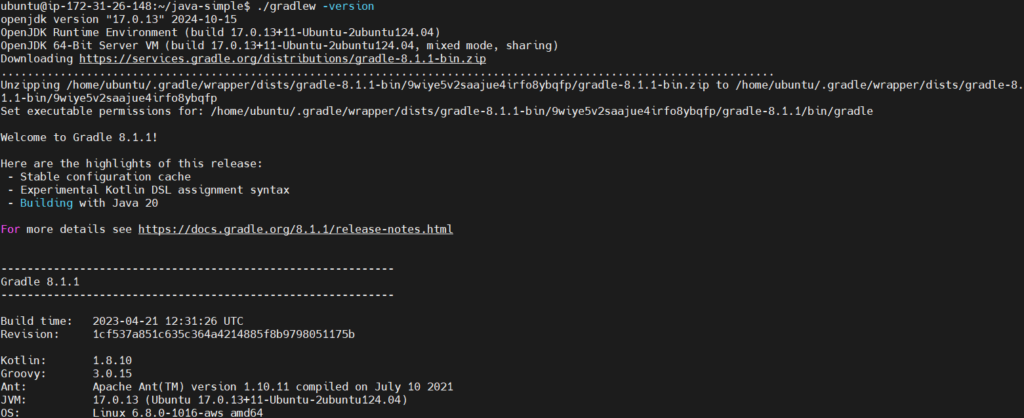
specify the Gradle version you want to use in this file. Here we are using 8.1.1.

Once done, check the Gradle wrapper version.
./gradlew -version
Build the application.
./gradlew assemble
This command compiles the application and prepares it for execution, generating a JAR file in the build/libs directory.
Now lets run the application.
java -jar ./build/libs/java-simple-0.0.1-SNAPSHOT.jar
The application is now running, and you can access it at http://<EC2-Instance-IP>:8080/rolldice.

Stop the application by pressing ctrl+c in console.
Step #5:Download and Configure OpenTelemetry Java Agent
Download the OpenTelemetry Java Agent.
curl -L -O https://github.com/open-telemetry/opentelemetry-java-instrumentation/releases/latest/download/opentelemetry-javaagent.jar
This Java agent automatically instruments your Java application and sends telemetry data to the configured backend.
Set environment variables to specify logging exporters and interval.
export JAVA_TOOL_OPTIONS="-javaagent:/home/ubuntu/java-simple/opentelemetry-javaagent.jar" \
OTEL_TRACES_EXPORTER=logging \
OTEL_METRICS_EXPORTER=logging \
OTEL_LOGS_EXPORTER=logging \
OTEL_METRIC_EXPORT_INTERVAL=15000
Step #6:Run and Verify OpenTelemetry Instrumentation
Finally, run the application to start capturing telemetry data.
java -jar ./build/libs/java-simple-0.0.1-SNAPSHOT.jar
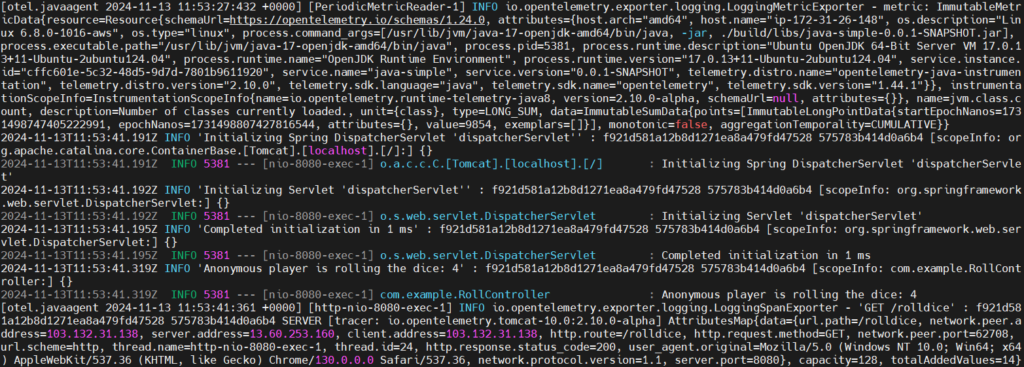
The application is now running, lets access it again at http://<EC2-Instance-IP>:8080/rolldice.
The OpenTelemetry Java Agent should now be generating logs for traces, metrics, and other telemetry data in the console. Verify this output to confirm the application is instrumented.

Conclusion:
In this article, we configured a Java application with Gradle and integrated OpenTelemetry using the Java Agent for seamless observability. Gradle is a powerful tool that simplifies the process of building and managing Java projects. OpenTelemetry provides powerful tools for observability, allowing developers to gain insights into application performance by collecting telemetry data such as traces, metrics, and logs. This setup allows you to monitor, trace, and gather performance insights effortlessly.
Related Articles:
How to Build Spring Boot Project Using Gradle
Reference:
