
In this article, we will learn how to monitor linux server using various shell commands and tools. Monitor linux server is crucial for maintaining the health and performance of your servers, workstations, or any computing devices. We’ll cover the creation of a basic script that tracks CPU usage, memory consumption, and disk space.
Table of Contents
Prerequisites
- AWS Account with Ubuntu 24.04 LTS EC2 Instance.
- Basic knowledge of Shell scripting.
Step #1:Create a file in Ubuntu
Open the terminal and use the nano command to create a new file.
nano monitor_resources.sh
Step #2:Write Shell script to monitor linux server
Write the script to monitor linux server into the file.
Following is a shell script to monitor system resources such as CPU usage, memory usage, disk space of linux server.
#!/bin/bash

while true; do
 clear
 echo "System Resource Monitoring"
 echo "--------------------------"

 # Display CPU usage
 echo "CPU Usage:"
 top -n 1 -b | grep "Cpu"

 # Display memory usage
 echo -e "\nMemory Usage:"
 free -h

 # Display disk space usage
 echo -e "\nDisk Space Usage:"
 df -h

 sleep 5 # Wait for 5 seconds before the next update
done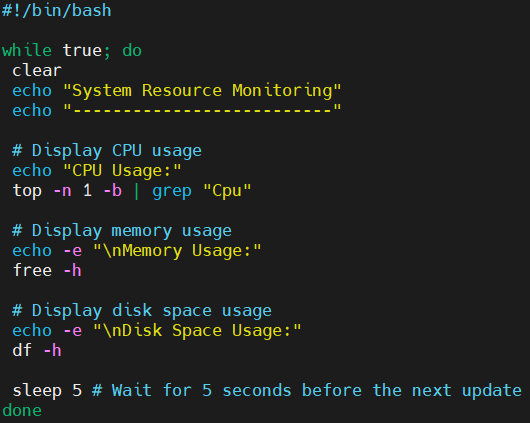
Save the file and exit the editor.
Explanation of the Script:
- Shebang (#!/bin/bash): Specifies the shell to be used for interpreting the script.
- while Loop: Creates an infinite loop that repeatedly gathers and displays system resource information.
- clear: Clears the terminal screen for a cleaner display.
- Display CPU Usage: Uses the top command with the -n 1 flag to display a single iteration of CPU usage information. The grep “Cpu” command filters out the relevant line.
- Display Memory Usage: Uses the free command with the -h flag to display memory usage in a human-readable format.
- Display Disk Space Usage: Uses the df command with the -h flag to display disk space usage in a human-readable format.
- sleep 5: Pauses the loop for 5 seconds before gathering and displaying resource information again.
Step #3:Make file executable
Change the file permissions to make it executable using the chmod command.
chmod +x monitor_resources.sh
Step #4:Run the script
Run the script by executing the following command.
./monitor_resources.sh
Output:
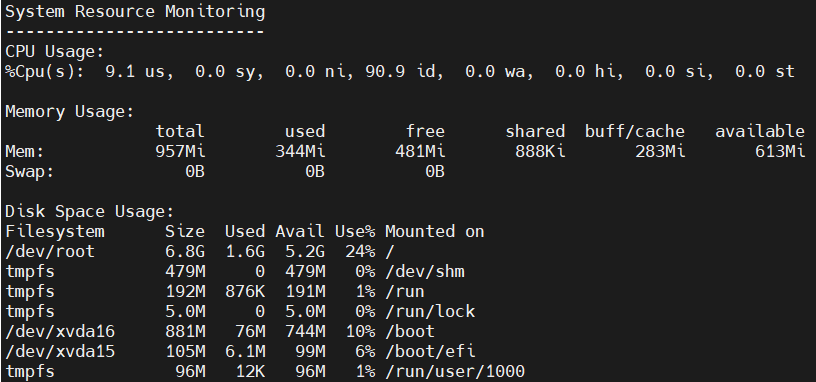
The terminal will now display system resource information, updating every 5 seconds. To stop the script, press CTRL + C.
Conclusion:
In conclusion, to monitor linux server using shell scripts on Ubuntu provides a straightforward and efficient way to keep track of CPU usage, memory consumption, and disk space. By following the steps to create, write, make executable, and run the monitor_resources.sh script, you can easily gather and display essential system information in real-time.
Related Articles:
Create Microsoft SQL Server RDS in AWS
Reference:

Just messing with you, great work keep it up
Thanks