
In this article, we are going to cover Linux Storage Management with Demo.
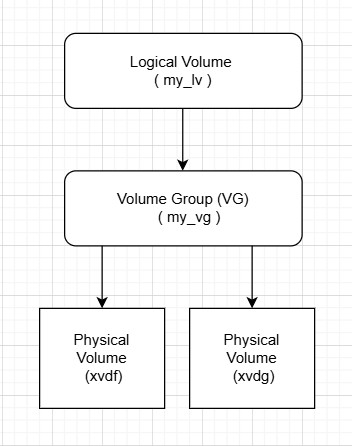
Effective storage management is essential in Linux systems, especially when handling large amounts of data or managing dynamic storage requirements. This article will explore the fundamental concepts and components of Linux storage management, focusing on Logical Volume Management (LVM), and guide you through its practical implementation on platforms like AWS EC2 Ubuntu instances. A diagram is also included to simplify the understanding of concepts.
Linux storage management using LVM revolves around three core components:
Table of Contents
1. Physical Volume (PV)
- Definition: The actual physical storage devices, such as hard drives, SSDs, or partitions.
- Purpose: Serves as the raw storage unit for LVM.
- Initialization Command:
pvcreate /dev/xvdf- Example: If you have a disk
/dev/xvdf, initialize it as a PV:
pvcreate /dev/xvdf2. Volume Group (VG)
- Definition: A collection of Physical Volumes combined to form a single storage pool.
- Purpose: Provides a flexible storage resource for Logical Volumes.
- Creation Command:
vgcreate my_vg /dev/xvdf /dev/xvdg- Example: Create a VG named
my_vgusing/dev/xvdfand/dev/xvdg:
vgcreate my_vg /dev/xvdf /dev/xvdg3. Logical Volume (LV)
- Definition: A virtual partition created within a Volume Group.
- Purpose: Can be formatted with a file system and mounted for use.
- Creation Command:
lvcreate -L 10G -n my_lv my_vg - Example: Create a 10GB LV named
my_lvinmy_vg:lvcreate -L 10G -n my_lv my_vg
Step-by-Step Guide to Implement LVM on AWS EC2 Ubuntu
1. Attach and Identify New Storage
- Attach a new EBS volume to your EC2 instance via the AWS Management Console.
- Identify the new volume:
lsblk

2. Initialize Physical Volumes
- Initialize the new volume(s) for LVM:
sudo pvcreate /dev/xvdf /dev/xvdg3.Initialize New Devices
- Confirm Devices: Ensure the new devices are visible and unused
sudo fdisk -l
4. Create a Volume Group
- Combine the PVs into a Volume Group:
vgcreate my_vg /dev/xvdf /dev/xvdg5. Create Logical Volumes
- Allocate storage from the VG:
lvcreate -L 10G -n my_lv my_vg6. Format and Mount the Logical Volume
- Format the LV with a file system:
mkfs.ext4 /dev/my_vg/my_lv- Mount the LV:
mkdir /mnt/my_storage

mount /dev/my_vg/my_lv /mnt/my_storage- Verify the mounted storage:
df -h - Optionally, make the mount persistent by adding it to
/etc/fstab:
echo '/dev/my_vg/my_lv /mnt/my_storage ext4 defaults 0 0' >> /etc/fstabDiagram: Linux LVM Structure
Below is a diagram illustrating the relationship between PVs, VGs, and LVs:
Advantages of LVM
- Flexibility: Resize storage volumes as needed without unmounting.
- Scalability: Add more physical devices to expand storage.
- Snapshots: Create snapshots for backup and recovery.
- Performance: Optimize performance by spreading data across multiple devices.
Troubleshooting for LVM or Storage Management
Here are some common issues you might encounter and how to troubleshoot them:
- Volume Not Found:
- Issue: After attaching a new EBS volume, it may not appear in the
lsblkoutput. - Solution: Ensure the volume is attached in the same availability zone as the instance. If it’s still not showing, try re-attaching it in the AWS Console and then run
lsblkagain.
- Issue: After attaching a new EBS volume, it may not appear in the
pvcreateFails with “No Device Found”:- Issue: The
pvcreatecommand fails to find the device. - Solution: Ensure the volume is properly recognized. You might need to run
partprobeto refresh partition tables if partitions were added manually.
- Issue: The
- Cannot Resize Logical Volume (LV):
- Issue: After extending an EBS volume, you cannot resize the LV.
- Solution: Ensure you’ve resized the partition and the physical volume correctly (
sudo pvresize). Check the volume group withsudo vgsto verify there is available space.
- File System Not Resizing After LV Extension:
- Issue: The file system doesn’t expand after resizing the Logical Volume.
- Solution: Use the
resize2fscommand on the LV to expand the file system:
sudo resize2fs /dev/my_vg/my_lv- LVM Commands Return “Device is Busy” or “Cannot Allocate Space”:
- Issue: LVM commands fail when a device is in use.
- Solution: Ensure the device is not mounted or in use by any other process. Use
umountto unmount the device before making changes.
Interview questions based on LVM (Logical Volume Management) and storage management in Linux:
1. What is LVM and how does it differ from traditional disk partitioning?
- Explanation: This question checks your understanding of LVM as a flexible storage management solution compared to traditional partitioning.
2. What are the main components of LVM? Explain each one.
- Explanation: You should be able to explain the three main components of LVM: Physical Volumes (PVs), Volume Groups (VGs), and Logical Volumes (LVs), and how they work together.
3. How do you create a new LVM setup on a Linux server?
- Explanation: This question tests your practical knowledge of the LVM setup process. The answer should include steps for creating a PV, VG, and LV, followed by formatting and mounting.
4. What is the difference between a Physical Volume (PV) and a Logical Volume (LV)?
- Explanation: Here, the interviewer wants you to explain the roles and distinctions between a PV (which refers to a physical storage device) and an LV (which is a virtualized partition or volume in LVM).
5. How would you extend the size of a Logical Volume (LV) in LVM after adding more space to the underlying storage?
- Explanation: The answer should cover the process of resizing the physical volume (using
pvresize), extending the logical volume (lvextend), and resizing the file system (resize2fs).
6. Explain the concept of “Volume Group” in LVM and how it can be expanded.
- Explanation: This question evaluates your understanding of how Volume Groups are used to pool storage from one or more Physical Volumes, and how additional space can be added to a VG by adding new PVs.
7. What is the purpose of LVM snapshots, and how would you create and use them?
- Explanation: LVM snapshots provide a point-in-time copy of a volume. This question checks your knowledge on creating and managing snapshots, typically used for backups or before making significant changes to a volume.
8. What would you do if an LVM volume becomes full?
- Explanation: Here, you should explain how to extend the Logical Volume, add more storage to the Volume Group, or perform other troubleshooting tasks like checking for unused space in the VG.
9. Can you explain how LVM works in a RAID setup or with multiple physical disks?
- Explanation: This question tests your knowledge of using LVM in conjunction with RAID or multiple disks, discussing how LVM aggregates storage from different devices and allows flexible volume management.
10. What are the potential risks of using LVM, and how can you mitigate them?
- Explanation: This question looks for your awareness of risks such as volume corruption, space allocation issues, or failure to back up LVM metadata. Mitigation strategies might include regular backups, using RAID for redundancy, and proper monitoring of storage usage.
Conclusion:
Linux LVM simplifies complex storage management tasks, offering flexibility and scalability. By leveraging the concepts of PV, VG, and LV, administrators can efficiently manage storage resources in dynamic environments such as AWS EC2 Ubuntu instances.
Feel free to explore LVM in your Linux system and unlock the full potential of efficient storage management!
Related Articles:
