
In this tutorial, we’ll walk through setting up a Flask API with integrated OpenTelemetry for enhanced observability using Prometheus and Grafana. We’ll set up a Flask API and add monitoring tools like Prometheus for tracking metrics, Grafana for creating visual dashboards, and OpenTelemetry for collecting detailed traces of requests.
By the end of this guide, you’ll have a complete system running on an Ubuntu EC2 instance. It will help you monitor your Flask API’s performance, track metrics.
Table of Contents
Prerequisites
- AWS Account with Ubuntu 24.04 LTS EC2 Instance.
- Python 3, pip, python virtual environment and docker installed on the system.
Step #1:Set Up Ubuntu EC2 Instance
First update the package list.
sudo apt update
Install Python 3, python virtual environment, pip.
sudo apt install -y python3 python3-venv python3-pip
Install Docker for containerized deployment of Prometheus and Grafana.
sudo apt install -y docker.io
Start the Docker service and enable it to run on startup.
sudo systemctl start docker
sudo systemctl enable docker
Step #2:Set Up the Flask API
Make a new directory for our project setup and navigate to that directory.
mkdir flask
cd flask
Since pip doesn’t work globally, use a virtual environment.
Set up a Python Virtual Environment. A virtual environment isolates your Python environment from the global system environment, making dependency management easier and avoiding conflicts.
python3 -m venv venv
Activate the virtual environment to use it.
source venv/bin/activate
Install Flask and OpenTelemetry libraries inside the virtual environment.
pip install flask opentelemetry-api opentelemetry-sdk opentelemetry-instrumentation-flask
Install the required package for OTLP exporter.
pip install opentelemetry-exporter-otlp
Install the prometheus flask exporter.
pip install prometheus-flask-exporter
Create the Flask API with Prometheus metrics and OpenTelemetry.
nano app.py
Add the following code into the file.
from flask import Flask
from prometheus_flask_exporter import PrometheusMetrics
from opentelemetry.instrumentation.flask import FlaskInstrumentor
from opentelemetry.sdk.trace import TracerProvider
from opentelemetry.sdk.trace.export import BatchSpanProcessor
from opentelemetry.exporter.otlp.proto.grpc.trace_exporter import OTLPSpanExporter

# Initialize Flask app
app = Flask(__name__)

# Initialize Prometheus metrics
metrics = PrometheusMetrics(app)

# Initialize OpenTelemetry
trace_exporter = OTLPSpanExporter(endpoint="http://localhost:4317")  # Adjust if using remote OpenTelemetry Collector
provider = TracerProvider()
processor = BatchSpanProcessor(trace_exporter)
provider.add_span_processor(processor)

# Instrument Flask app with OpenTelemetry
FlaskInstrumentor().instrument_app(app)

# Add routes
@app.route('/hello')
def hello():
    return "Hello, World!"

@app.route('/health')
def health():
    return {"status": "healthy"}

if __name__ == '__main__':
    app.run(host='0.0.0.0', port=8080)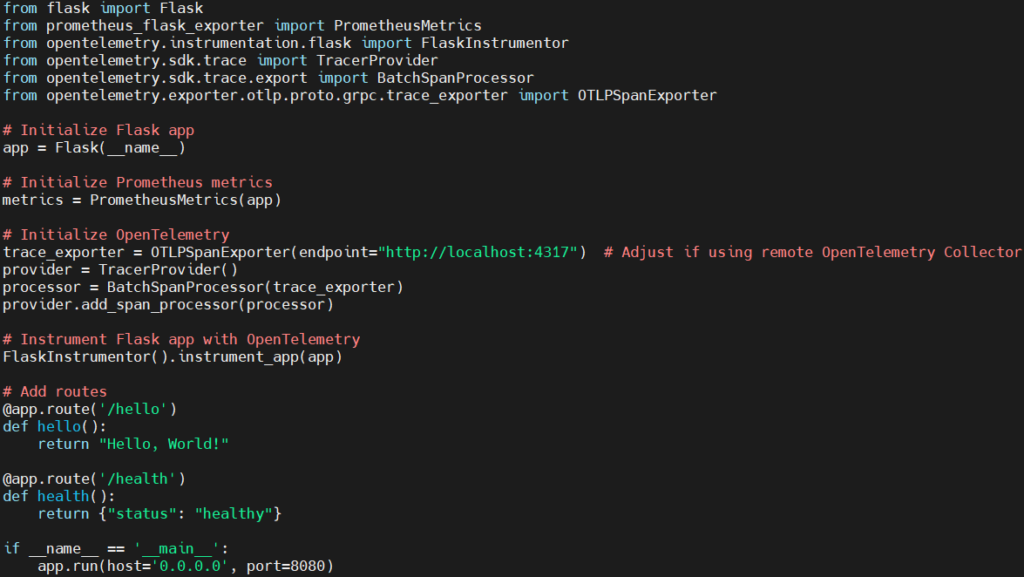
Explanation of the code:
- Importing Necessary Libraries:
- Flask: The core Flask framework for building web APIs.
- PrometheusMetrics: This is used to expose HTTP metrics (such as request counts, durations) from the Flask app to Prometheus.
- FlaskInstrumentor: This is part of OpenTelemetry, used to automatically instrument the Flask application to collect traces.
- TracerProvider: This defines the trace provider, which is responsible for creating traces and spans.
- BatchSpanProcessor: It collects and processes spans in batches to improve performance and reduce overhead.
- OTLPSpanExporter: This exporter sends the collected spans to an OpenTelemetry Collector (or backend) via the OTLP (OpenTelemetry Protocol).
- Flask Application Initialization:
- Here, a new Flask application instance is created, which will handle incoming HTTP requests.
- Prometheus Metrics Initialization:
- This initializes the Prometheus metrics integration for the Flask app. The
PrometheusMetricsobject will automatically expose Prometheus-compatible metrics, such as request counts and latencies, under the/metricsendpoint.
- This initializes the Prometheus metrics integration for the Flask app. The
- OpenTelemetry Setup:
- OTLPSpanExporter: This creates an exporter that sends the trace data to an OpenTelemetry Collector (or a compatible backend) over gRPC. The
endpointparameter specifies the collector’s URL. Here, it’s set tohttp://localhost:4317, which is a typical endpoint for local setups. - TracerProvider: It acts as a container for trace resources. It provides a way to create and manage spans.
- BatchSpanProcessor: The spans collected by OpenTelemetry will be sent in batches to the exporter for improved performance.
- The
BatchSpanProcessoris added to theTracerProvider, which processes and exports the collected spans.
- OTLPSpanExporter: This creates an exporter that sends the trace data to an OpenTelemetry Collector (or a compatible backend) over gRPC. The
- Instrumenting the Flask App with OpenTelemetry:
- FlaskInstrumentor().instrument_app(app) This line automatically instruments the Flask app for tracing using OpenTelemetry. By calling
instrument_app(), the Flask application is wrapped with OpenTelemetry tracing functionality, which means every HTTP request that comes to the application will generate trace spans.
- FlaskInstrumentor().instrument_app(app) This line automatically instruments the Flask app for tracing using OpenTelemetry. By calling
- Defining Routes:
- This route (/hello), when accessed via HTTP (GET), will return a simple “Hello, World!” message. This is just a basic route to demonstrate the functionality of the API.
- The
/healthroute is a health check endpoint, typically used in production environments to monitor whether the service is running and functioning correctly. It returns a JSON response indicating the status of the application.
- Running the Flask App:
- This starts the Flask application when the script is run directly. The app will listen on all network interfaces (
0.0.0.0) and will be accessible on port8080. - host=’0.0.0.0′: This makes the app accessible from any IP address, which is useful if you want to access the API remotely (e.g., on a server or EC2 instance).
- port=8080: The port on which the Flask app will run.
- This starts the Flask application when the script is run directly. The app will listen on all network interfaces (
Step #3:Set Up and Configure Prometheus
Pull the latest Prometheus Docker Image.
sudo docker pull prom/prometheus:latest
Create a directory for Prometheus configuration and navigate to it.
mkdir prometheus
cd prometheus
Create the prometheus.yml file.
nano prometheus.yml
Add the following configuration.
global:
  scrape_interval: 15s

scrape_configs:
  - job_name: 'flask-metrics'
    scrape_interval: 5s
    static_configs:
      - targets: ['<Public-IP-address>:8080']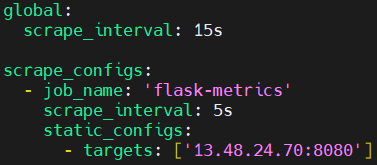
Save and exit the file.
Run Prometheus, mounting the configuration file.
sudo docker run -d \
  --name=prometheus \
  -p 9090:9090 \
  -v $(pwd)/prometheus.yml:/etc/prometheus/prometheus.yml \
  prom/prometheus

Exit to the root directory.
cd ..
Step #4:Set Up Grafana for Visualization
Pull the latest Grafana image.
sudo docker pull grafana/grafana:latest
Start the Grafana container.
sudo docker run -d \
--name=grafana \
-p 3000:3000 \
grafana/grafana
Grafana will now be accessible at http://<EC2-Public-IP>:3000.
Step #5:Run the Flask API
Start the Flask application.
python app.py
Your API will be accessible at:
http://<EC2-Public-IP>:8080/hello: Returns “Hello, World!”http://<EC2-Public-IP>:8080/health: Returns a health status.http://<EC2-Public-IP>:8080/metrics: Provides Prometheus metrics.


Once the application is running, you can access the Prometheus web interface by visiting http://<EC2-Instance-IP>:9090.
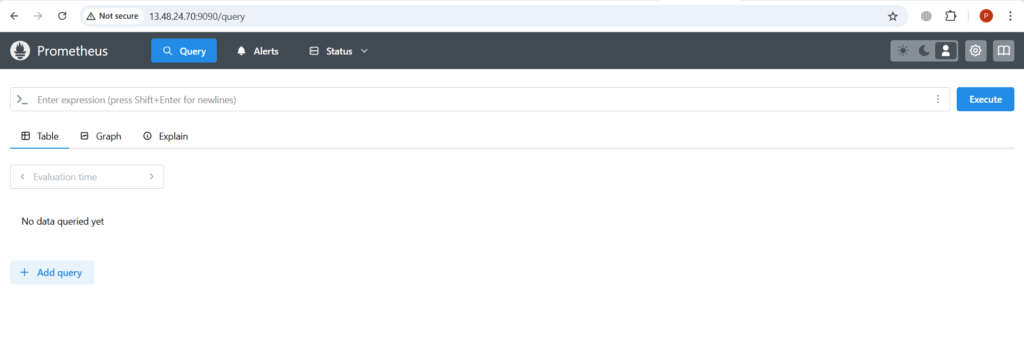
To check if Prometheus is correctly scraping metrics from your .NET application, navigate to the “Targets” page in the Prometheus UI. Click on “Status” in the menu bar and then “Targets. “Ensure that your job “flask-metrics” is listed and marked as “UP.”

Step #6:Configure Grafana to visualize metrics
Log in to Grafana at http://<EC2-Public-IP>:3000

Default login credentials are:
- Username:
admin - Password:
admin(you will be prompted to change this).
You will be prompted to change the password after your first login. You can change it or skip it.
After logging in to Grafana, you’ll need to add Prometheus as a data source.
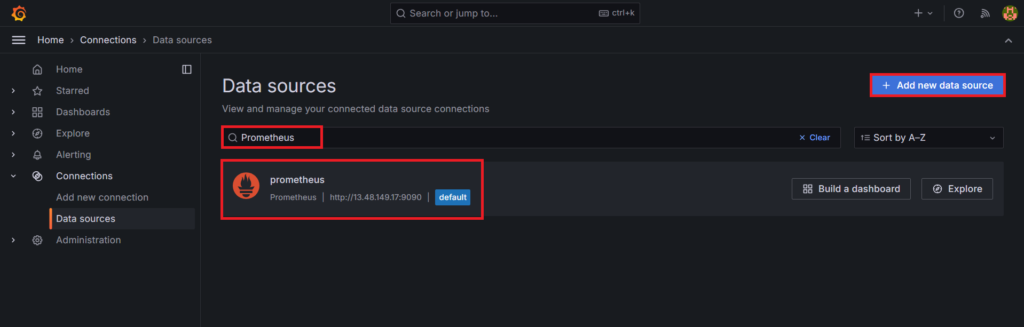
- Click on “Connections”
- Click on the “Data source” button.
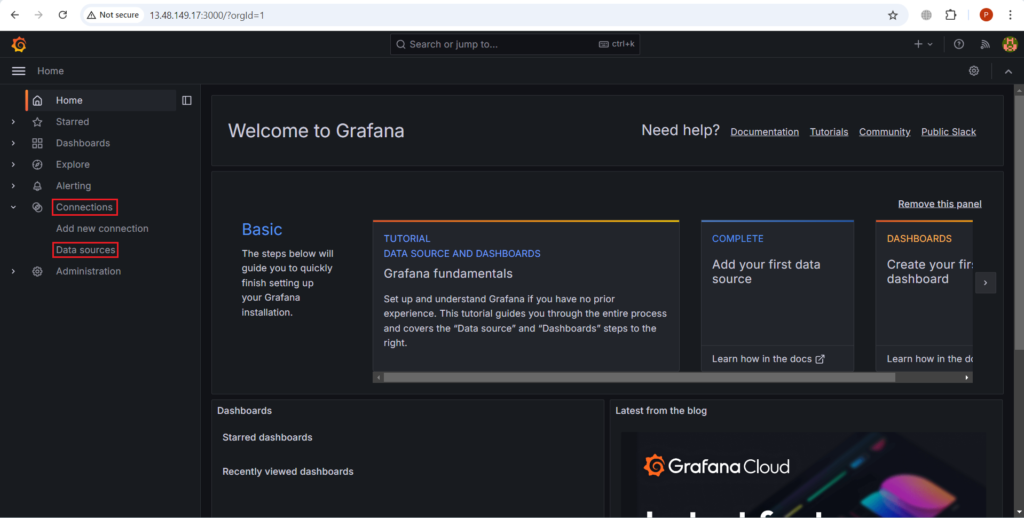
Search for prometheus in search bar and select it as a data source. Then click on Add new data source.
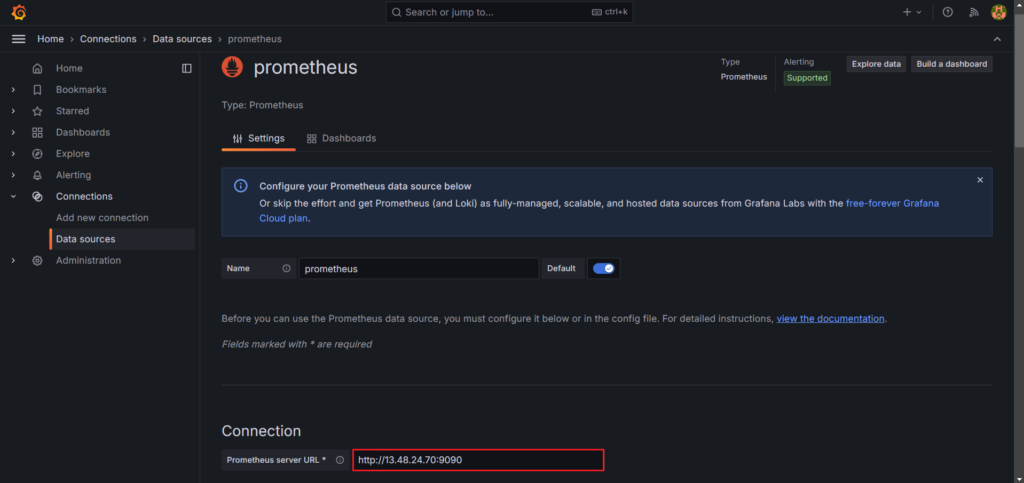
Set the URL to: http://<EC2-Instance-IP>:9090. Replace <EC2-Instance-IP> with the IP address of your EC2 instance. Leave other settings at their default values.
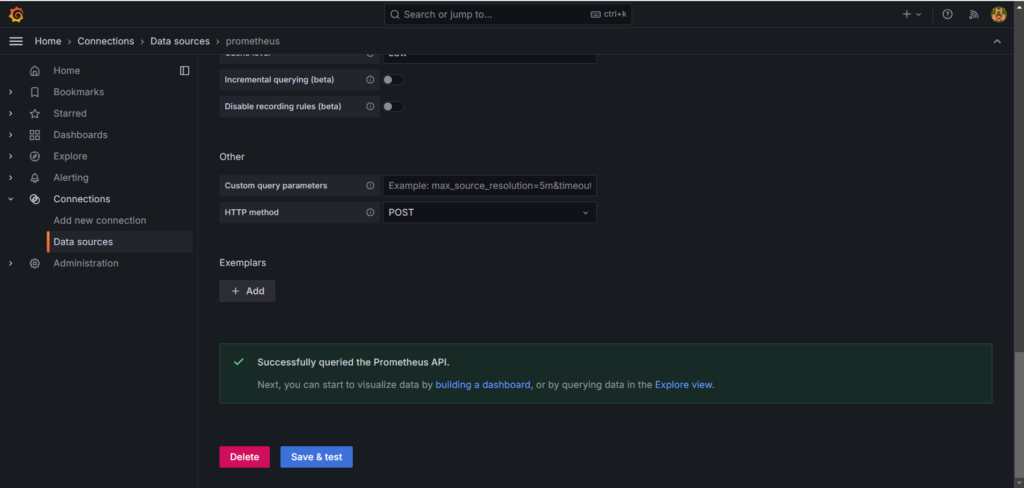
Click the “Save & Test” button to ensure that Grafana can connect to Prometheus.
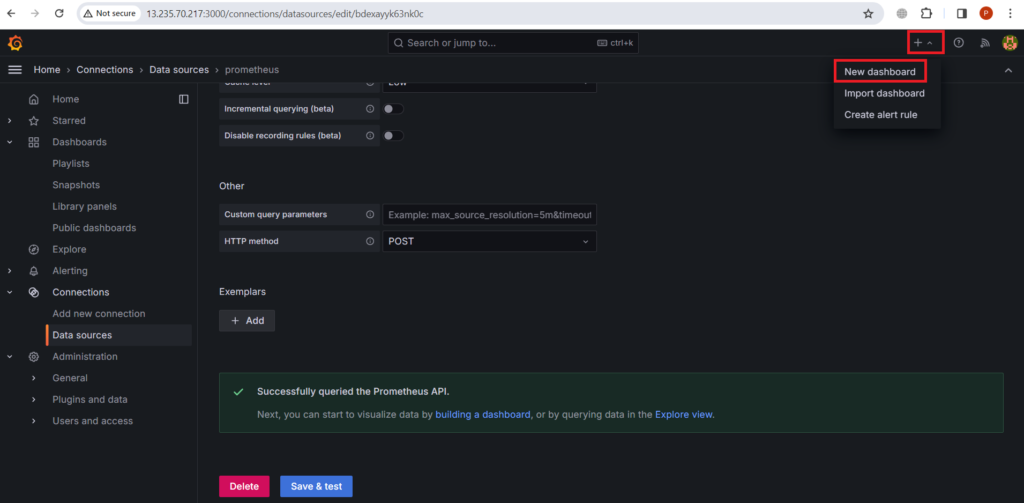
Click on the “Plus” icon in the sidebar and select “Dashboard.”
Click on “Add visualization”

In the “Query” section, select the Prometheus data source. Enter a Prometheus query to retrieve metrics from your Flask API, such as,
flask_http_request_total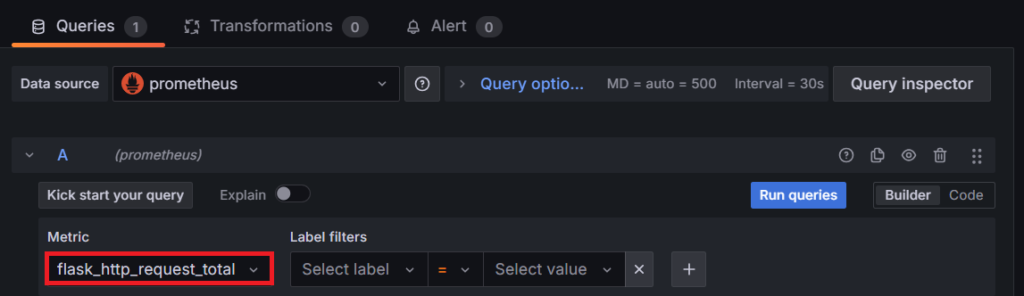
Choose a visualization type (e.g., “Time series,” “Graph”, “Gauge”) that best represents your data.
Here we have used “Gauge.”

You see a count of 4 for this metric, it means there have been a total of 4 HTTP requests made to Flask api.
Conclusion:
In conclusion, this stack provides robust observability, allowing you to monitor the performance and health of your Flask application. Today we have successfully deployed a Flask API, integrated Prometheus for metrics scraping, set up Grafana for visualization. With Prometheus, you can collect important metrics, and Grafana helps you see those metrics in a clear and visual way. Adding OpenTelemetry makes it easy to track what happens inside your app when it handles requests.
Related Articles:
Integrate OpenTelemetry for PHP Application with Zero-Code Instrumentation
Reference:
